Knowledge base
The knowledge base is everything the assistant knows about your business beyond your product catalogue. This page explains each source and how to find the gaps.
You manage it on AI Assistant → Knowledge → Knowledge Base. Your WooCommerce products are handled separately: with WooCommerce Product Sync on, the assistant already knows product names, prices, stock and descriptions.
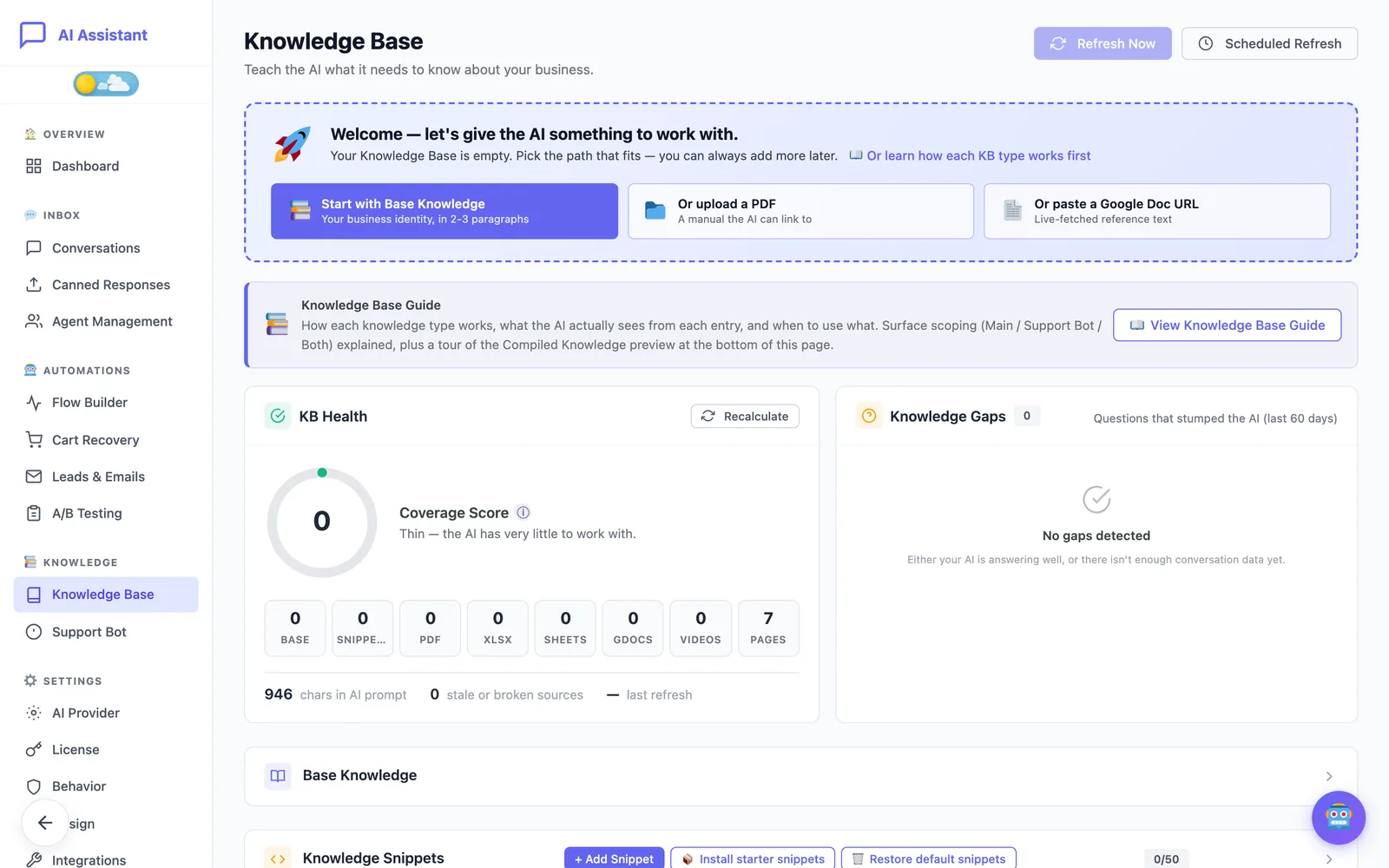
Start with base knowledge
Base Knowledge is one free-form text box. Whatever you write there is included in every conversation, so use it for facts that always matter: who you are, where you ship, your return window, your tone of voice.
- Open the Base Knowledge section.
- Write two or three short paragraphs about your business.
- Click Save Base Knowledge.
Add snippets for specific questions
A snippet is a short, titled answer to one topic, such as “Return policy” or “Delivery times”. Snippets are the best way to fix a wrong or missing answer.
- In Knowledge Snippets, click + Add Snippet.
- Enter a Title and the Content.
- Set a Priority Weight. A higher weight places the snippet earlier in what the assistant reads.
- Choose where it applies: both chats, the main chat only or the Support Bot only.
- Click Save Snippet.
Short on time? Install starter snippets adds a set of common e-commerce topics for you to edit. Entries marked Needs customization still contain placeholder text you should replace with your own policy.
Upload PDFs and other documents
Use Import from Document to upload a PDF, DOCX or TXT file (5 MB maximum per file).
- PDFs are stored on your server as reference documents. The assistant receives each file’s title, link and a short summary, not the full text, so it can send customers a link to the right manual or size guide. If the assistant must be able to quote something from a PDF, put that passage in a snippet as well.
- DOCX and TXT files have their text extracted. You review it in the preview, give it a title and save it as a snippet with Import Content.
- XLSX and XLS spreadsheets have their own upload zone. Each is converted to plain text (up to 5,000 cells) and read by the assistant; the file itself is not shared with customers.
Sync your site pages
Site Pages lets the assistant use the pages you have already written, such as your FAQ, shipping or contact page.
- Turn on Enable Site Content Sync.
- Under Post types to sync, choose what to include. Pages are recommended; posts add your blog.
- Click Sync now to discover your published content.
- Use the Included toggle on each row to decide which pages the assistant may use.
Short pages are read in full. Longer pages are passed as a title, link and short summary so the assistant can point customers to them; the Inline content limit sets the threshold. The WooCommerce cart, checkout and account pages are skipped automatically, and so are products, which come from the product catalogue.
On the Free plan you choose up to five active pages. Pro uses every discovered page.
Connect Google Docs and Google Sheets
- In Google, share the document or sheet so that anyone with the link can view it. Only public documents can be imported.
- Paste the link in Google Docs URL or Google Sheets URL and click Fetch & Preview.
- Check the preview, give it a title and save it.
The content is copied at that moment. When you edit the document in Google, click Refresh on its row, or Refresh Now at the top of the page to re-fetch every Google source. With Scheduled Refresh Pro the plugin does this hourly, daily, weekly or monthly. Sources that have not been refreshed for over 30 days, or that failed to load, are flagged in KB Health.
You can also add YouTube Videos with a description, so the assistant can show a video card when it is relevant.
Limits on the Free plan
Free includes base knowledge plus 5 snippets, 1 PDF or document, 1 spreadsheet, 1 Google Sheet, 1 Google Doc, 1 video and 5 active site pages. Pro raises these limits. If you go from Pro back to Free, nothing is deleted: entries above the Free limits stay in your admin but are not read by the assistant until you are within the limits or back on Pro.
Check what the assistant knows
- KB Health gives a coverage score and counts each source type, with the total size of the text sent to the AI.
- What does the AI currently know? at the bottom of the page shows the exact compiled text, for the main chat and for the Support Bot.
- Test My Knowledge lets you type a customer question and see the answer without saving a conversation or creating a coupon.
What happens when the assistant doesn’t know
The assistant answers from your knowledge base, your product catalogue and, when a customer looks up an order, that order’s details. When a question falls outside of that, three things help:
- Escalation to a person. When a customer asks for a human, or a message contains one of your escalation keywords, the chat offers a contact form and the request goes to your team. See Agents and human takeover.
- Knowledge Gaps. This panel lists questions from the last 60 days that ended in an escalation or a low satisfaction rating. Click Answer on a gap to create a snippet for it, or dismiss it.
- Your instructions. If you want a specific behaviour, for example “if you are not sure, say so and suggest the contact page”, add it to the System Prompt under AI Provider.
A good routine is to open Knowledge Gaps once a week and turn each real gap into a snippet.
Still stuck?
Check the troubleshooting guide, or contact support and tell us what you tried.