Agents and human takeover
The assistant handles most questions alone, but a customer can always reach a person. This page covers how a conversation gets to your team and how you reply.
How a conversation reaches a human
- The customer asks for a person, or their message contains one of your escalation keywords.
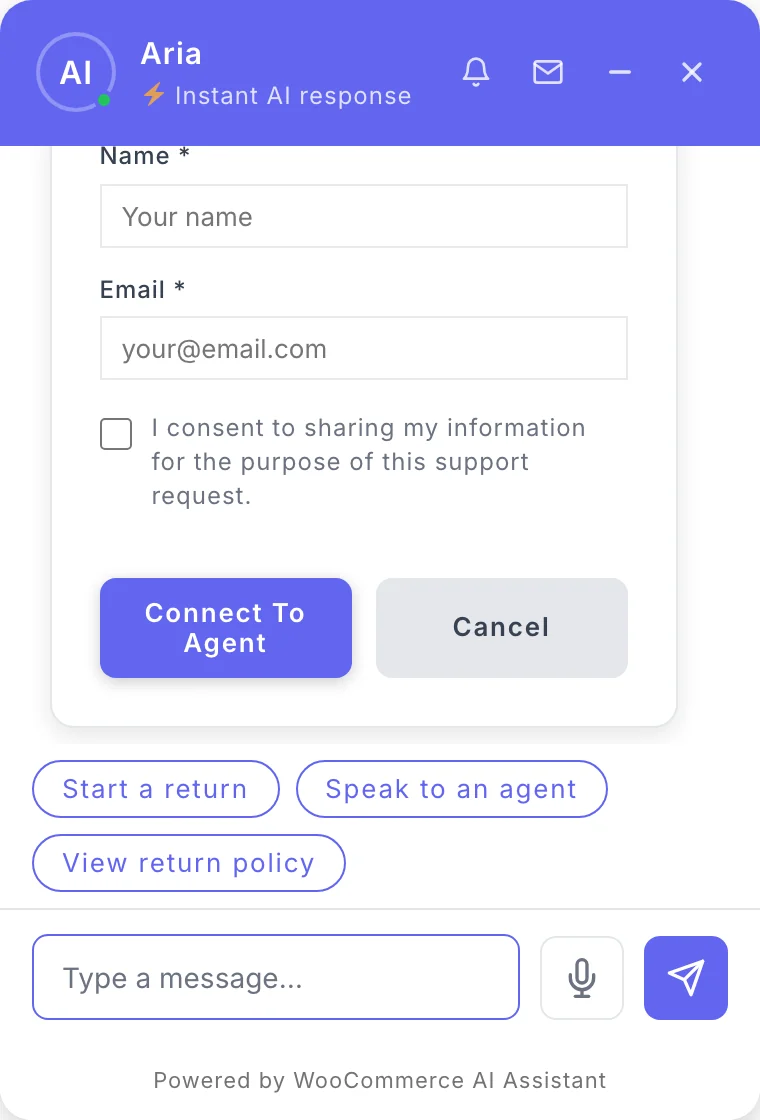
- The chat shows a short contact form asking for their name and e-mail, with a consent checkbox.
- When they submit it, the conversation is marked Escalated and your team is alerted. From that moment the AI stops replying in that conversation, so the customer is not answered by the bot while waiting for you.
- A team member opens the conversation, clicks Take Over and chats with the customer live.
Configure escalation
Open AI Assistant → Settings → Behavior and scroll to Escalation Settings.
- Leave the master switch at the top right of the section on. When it is off, nothing escalates and the AI answers every message itself.
- Enter the Escalation Email. Alerts are sent to this address; by default it is your site’s admin e-mail.
- Review the Trigger Keywords, one per line or separated by commas. The defaults include “human”, “agent”, “talk to someone” and “urgent”. Add the words your customers really use, in their language.
- Optionally turn on Auto-Escalate Frustrated Conversations to escalate when the conversation’s sentiment is rated Frustrated.
- Optionally add a Slack Webhook URL or WhatsApp Webhook URL Pro to be alerted there as well.
- Click Send Test Escalation Alert to check that every channel receives it, then save.
Max Conversation Turns, under Limits & Language on the same screen, sets how many exchanges a conversation can have before it is escalated or closed.
Take over a conversation
- Open Inbox → Conversations. Escalated conversations are marked, and a quick filter shows only those.
- Click Take Over on the conversation. A chat window opens with the full history, and the customer is told an agent has joined.
- Type your reply and click Send. The AI stays silent while you are in the conversation.
- When you are done, click Hand Back to Bot. Closing the window also hands the conversation back.
The per-minute message limit that protects the AI from abuse does not apply while a person is handling the conversation.
During a takeover you can click Enable image upload Pro to let that customer send you a photo, for example of a damaged item.
Reply faster with canned responses
Canned responses are pre-written replies that appear in the Quick Responses panel of the takeover window. Click one to insert it.
- Open Inbox → Canned Responses.
- Click Install starter responses to get three ready replies (a welcome, a “checking the details” message and a wrap-up), or + Add Canned Response to write your own.
- Give it a title, the text and optionally a category.
- Click Save Response.
You can use four variables in the text, filled in automatically: {user_name}, {user_email} and {user_phone} from the escalation form, and {agent_name}. Responses set to Inactive stay saved but don’t appear in the panel.
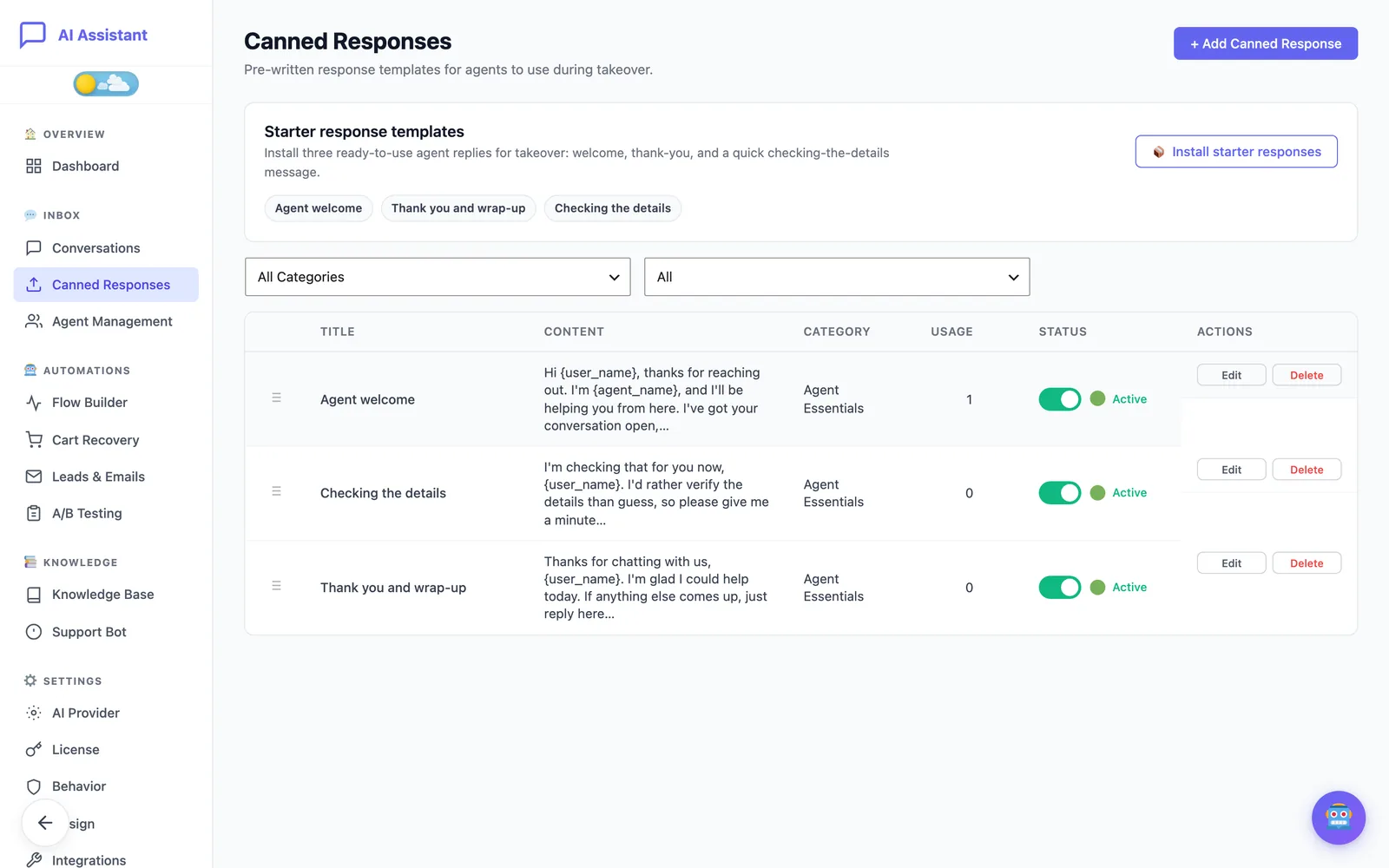
The Free plan holds up to three canned responses. Pro removes that limit.
Add agents and schedules Pro
On the Free plan, administrators take over conversations themselves. Agent Management, under Inbox, is a Pro feature for stores with a support team.
- Create a WordPress user for each team member with the Support Agent role (administrators can be agents too).
- Open Inbox → Agent Management and click Add Agent.
- Select the user, set their Timezone and their Work Schedule.
- Click Send Test Email to check that the agent receives escalation notifications, then Save Agent.
An agent is available when their status is Online and the current time is inside their work schedule. Agents switch between Online and Offline themselves and follow their own queue and figures on My Dashboard.
How escalations are routed
- A new escalation is assigned to the next available agent in turn, so the load is shared.
- If nobody is available, the customer can still fill in the contact form. The request waits in the Escalation Queue on the Agent Management screen, where you can assign it by hand.
- Outside working hours the assistant does not promise a live transfer. If the customer asks for a person, it tells them your team’s working hours.
The same screen shows, per agent, the conversations handled, the sessions in progress and the average satisfaction rating.
Follow up afterwards
- Customers can rate the conversation from one to five stars. Low ratings feed the Knowledge Gaps panel.
- Reply Later (Email Follow-up) Pro lets you answer an escalated or closed conversation by e-mail when the customer has already left the chat.
- To push escalations into another tool, use the
conversation_escalatedevent in Webhooks Pro.
Still stuck?
Check the troubleshooting guide, or contact support and tell us what you tried.