A/B testingPro
A/B testing shows two versions of one chat setting to different visitors and measures which one performs better, so you can change your assistant based on what customers actually do.
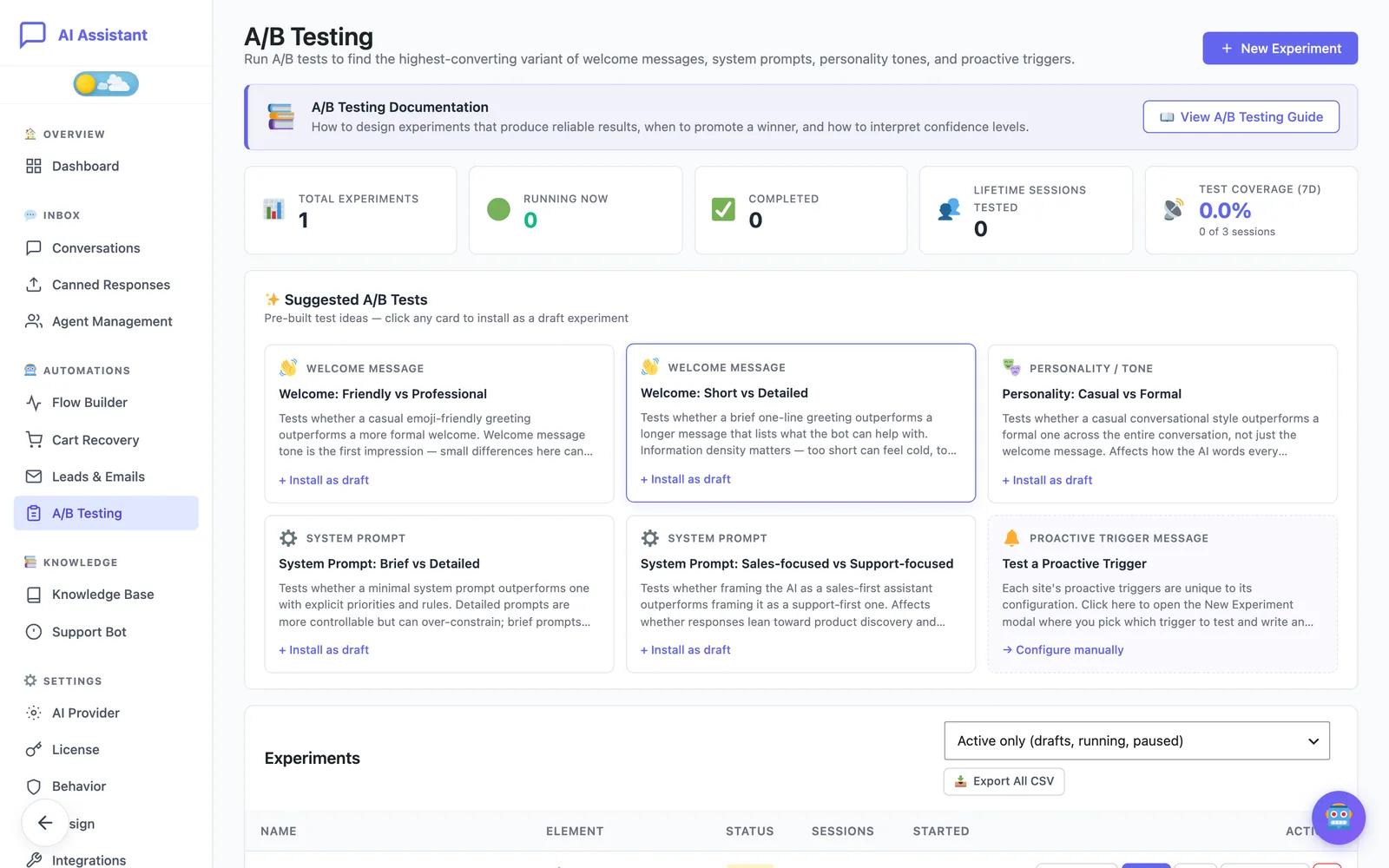
A/B testing is a Pro feature. You’ll find it under AI Assistant → Automations → A/B Testing. The tiles at the top count your experiments and show Test Coverage (7d): the share of chat sessions from the last 7 days that took part in a running experiment.
What you can test
Each experiment compares two versions, Variant A (Control) and Variant B (Challenger), of one element:
- Welcome Message: the first bubble customers see when the chat opens.
- System Prompt: the instructions that shape every answer. A change here affects the whole behaviour of the assistant, so test it with care.
- Personality / Tone: the conversational style, for example Professional, Friendly, Casual, Enthusiastic or Empathetic.
- Proactive Trigger Message: an alternative message for one of your Cart Recovery triggers. You need at least one trigger before you can test this.
Only one experiment can run on the same element at a time. Starting a second one on the welcome message, for example, is refused until you stop the first.
Start from a suggested test
Suggested A/B Tests is a gallery of ready-made experiments: Welcome: Friendly vs Professional, Welcome: Short vs Detailed, Personality: Casual vs Formal, System Prompt: Brief vs Detailed and System Prompt: Sales-focused vs Support-focused.
- Click + Install as draft on a card.
- Find the new experiment in the Experiments table. It has the status Draft, so no visitor sees it yet.
- Click Preview to read both variants side by side, then Edit to rewrite them in your own words.
The sixth card, Test a Proactive Trigger, opens the New Experiment window instead, because your triggers are specific to your store.
Create your own experiment
- Click New Experiment.
- Enter an Experiment Name and choose the Element to Test. For a proactive trigger, also pick Which Trigger to Test.
- Fill in both variants. Variant A is filled in from your current setting; Variant B is the new version you want to try.
- Set the Traffic Split. The slider is the share of visitors who get Variant B, from 10% to 90%. The default is 50/50, and the label reads A/B, so “30/70” means 30% to A and 70% to B.
- Optionally open the Sample Size Calculator and add Notes about what you expect to learn.
- Click Save Experiment. It is saved as a draft.
Estimate how long a test needs
In the Sample Size Calculator, enter your Baseline conversion (%) and the Minimum lift to detect (%), keep Confidence at 95% and Statistical power at 80% unless you have a reason to change them, and click Calculate. You get the number of sessions needed per variant and, when your chat has had conversations in the last 7 days, an estimated duration at your current traffic. Smaller lifts need more sessions.
Start, pause and resume
- On a draft, click Start and confirm. From that moment the experiment affects live traffic and its status becomes Running.
- To pause it, click Stop and confirm. All visitors go back to your normal settings and the collected data is kept. The status becomes Paused.
- Click Resume on a paused experiment to split traffic again from where it left off.
Duplicate copies any experiment as a fresh draft, which is the quickest way to rerun a test or try a third wording. The × button deletes an experiment with all its data and cannot be undone. Only drafts can be edited: to change a running test, duplicate it and start the copy.
How visitors are assigned
Each chat session is placed in Variant A or Variant B by a calculation on its session ID, in the proportion you set with the traffic split. The result is always the same for the same session, so a visitor keeps the same variant from page to page and is never switched in the middle of a conversation. You don’t choose who sees what, and neither does the visitor.
Read the results
Click Results on a running experiment to open its panel directly under the row. For each variant it shows six metrics:
- Sessions: how much data each variant has. This is not a score.
- Avg Messages: how long conversations are.
- Escalation Rate: the share of conversations that asked for a person. Lower is better.
- Avg Satisfaction: the average star rating, with the number of ratings it is based on.
- Total Revenue: the value of orders attributed to chats in that variant.
- Revenue / Session: revenue adjusted for the number of sessions, which makes it the fairer comparison when the two variants have different amounts of traffic.
The Lift (B vs A) column gives the percentage difference, and the Significance column shows, metric by metric, whether that difference is likely to be real. Above the table, a banner names the leading variant and how many of the metrics it wins; the Daily Sessions Trend chart shows activity over the last 30 days and a progress bar shows how close you are to the recommended sample size. Once customers have left ratings, a Satisfaction Distribution chart shows how the stars are spread for each variant.
What the confidence label means
The plugin runs a statistical test on the share of sessions that led to an order and sums it up in one Confidence label:
- Needs Data: fewer than 10 sessions in a variant. No test is run yet.
- Insufficient: the difference between A and B is consistent with chance. Keep the test running.
- Approaching: a signal is appearing but is not yet decisive. Keep the test running.
- Significant: the difference is unlikely to be chance (p < 0.05). You can act on it.
When to declare a winner
- Wait for Significant. The banner then reads “Statistically significant — safe to promote if the business outcome makes sense.”
- Check that the winner leads on several metrics, not just one. A variant that earns more but is rated lower by customers may not be the one you want.
- Look at the trend. A lead that holds or widens over the days is a real signal; a big early lead that shrinks is not.
- Run one experiment at a time where you can. If you change the welcome message, the prompt and the tone together, you cannot tell which change produced the result.
On a quiet store this can take days or weeks. That is normal: stopping early because one variant is ahead after a handful of sessions is the most common way to pick the wrong version.
Promote the winner
- Open the experiment’s Results.
- Click Promote A or Promote B and confirm.
The chosen variant becomes your live setting for every visitor: the welcome message, system prompt or personality tone is updated, or, for a trigger test, the message of that trigger. The experiment ends and moves to the Archived (completed) filter of the Experiments list, where you can still open its results.
Both buttons stay disabled until each variant has at least 10 sessions, so that a winner cannot be chosen on almost no data. Use the Notes / Learnings box at the bottom of the panel to record what you concluded.
Export the data as CSV
- Export CSV, in an experiment’s results panel, downloads the data for that experiment.
- Export All CSV, above the Experiments table, downloads the data for every experiment in one file.
The file has one row per chat session with these columns: experiment_id, experiment_name, variant, session_id, created_at, messages_sent, escalated, satisfaction_rating and revenue.
Still stuck?
Check the troubleshooting guide, or contact support and tell us what you tried.